|
|
PAINT SHOP PRO 7 TUTORIAL(Creating Stained Glass Images)
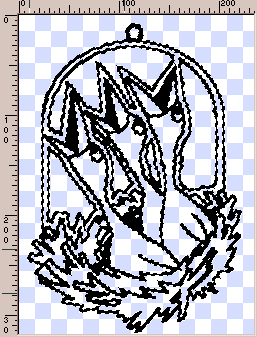
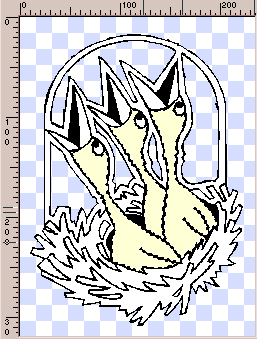
STEP 1: It may be best at this point to work with a copy of your image, saving your original in case you mess up. STEP 2: Your image must be in 24 bit color in order to do this. If your image is not in 24 bit color, increase the color depth (Colors, Increase Color Depth) STEP 3: Either hold down the "Shift" key while making the selections and hit "Delete" after everything is selected, or hit "Delete" after each and every selection. (I prefer the former.) STEP 4: Do this by using your magic wand and holding the "Shift" key down while selecting all the transparent areas. Now expand your selection by 1 pixel (Selections, Modify, Expand) and then hit the delete key. You can check to make sure that you got all the stray white, by creating another layer under your image and filling it with a darker color. This will make any stray white areas stand out like a sore thumb. If there is white showing, expand your selection by another pixel and "delete" to get rid of it. Once your clipart is cleaned up, you're ready to proceed with the fun part! STEP 5: First, I chose the birds. I selected the body of the birds by using my magic wand and the Shift key. (I also had to pixel paint some of the lines with black to close them off, so my wand wouldn't select all the white outside the birds, too.)
STEP 6:
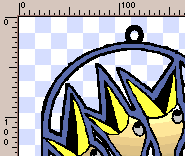
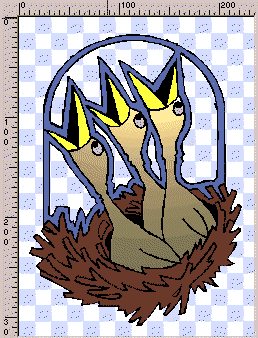
STEP 7: DO NOT SELECT ANY OF THE BLACK AREAS! We will use the black lines and areas as the "solder" that holds the glass pieces together. Here's where my image stands at present:
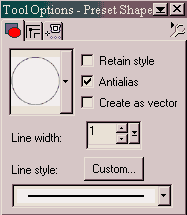
STEP 8: Click on the Shapes Tool STEP 9: Draw a small circle at the very top of your image. Position the loop so it touches the black outline of your clipart, but doesn't overlap too much.
After you're done with your loop and it's positioned correctly, Merge Visible to make everything one layer again. STEP 10: In this example, my outlines are too thin to really look like solder in a stained glass figurine. I need to expand the selection by 1 pixel (Selections, Modify, Expand). If you're outlines are thick enough, expanding the selection is not necessary.
STEP 11 - For those who had to expand their selection: With your bottom layer and your selection active, flood fill that layer with black.
STEP 12: You should now have thicker black outlines, all colors showing, and everything on one layer.
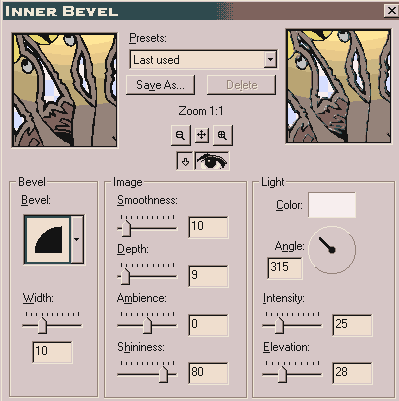
STEP 13: STEP 14:
You're done! Save your file as a transparent .gif or .psp image, and you have a very nice decoration for a "virtual" window!!
|
 to give it the gradient/light look. (If you are using PSP6, you won't
have this feature, but you can flood fill with a plain gradient or use
a Pool Shadow filter.)
to give it the gradient/light look. (If you are using PSP6, you won't
have this feature, but you can flood fill with a plain gradient or use
a Pool Shadow filter.) 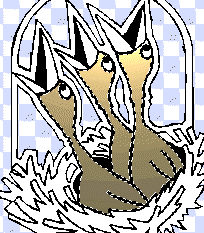
 and set it up as follows: (be sure your foreground color is set to black,
and your "fill" is nil.)
and set it up as follows: (be sure your foreground color is set to black,
and your "fill" is nil.)